The webpage styles have not loaded correctly.
PLEASE PRESS Ctrl + Shift + R (Windows), Cmd + Option + R (Safari), Cmd + Shift + R (Other Mac browsers) TO RELOAD THE PAGE CACHE. This should solve the issue.
Trip list
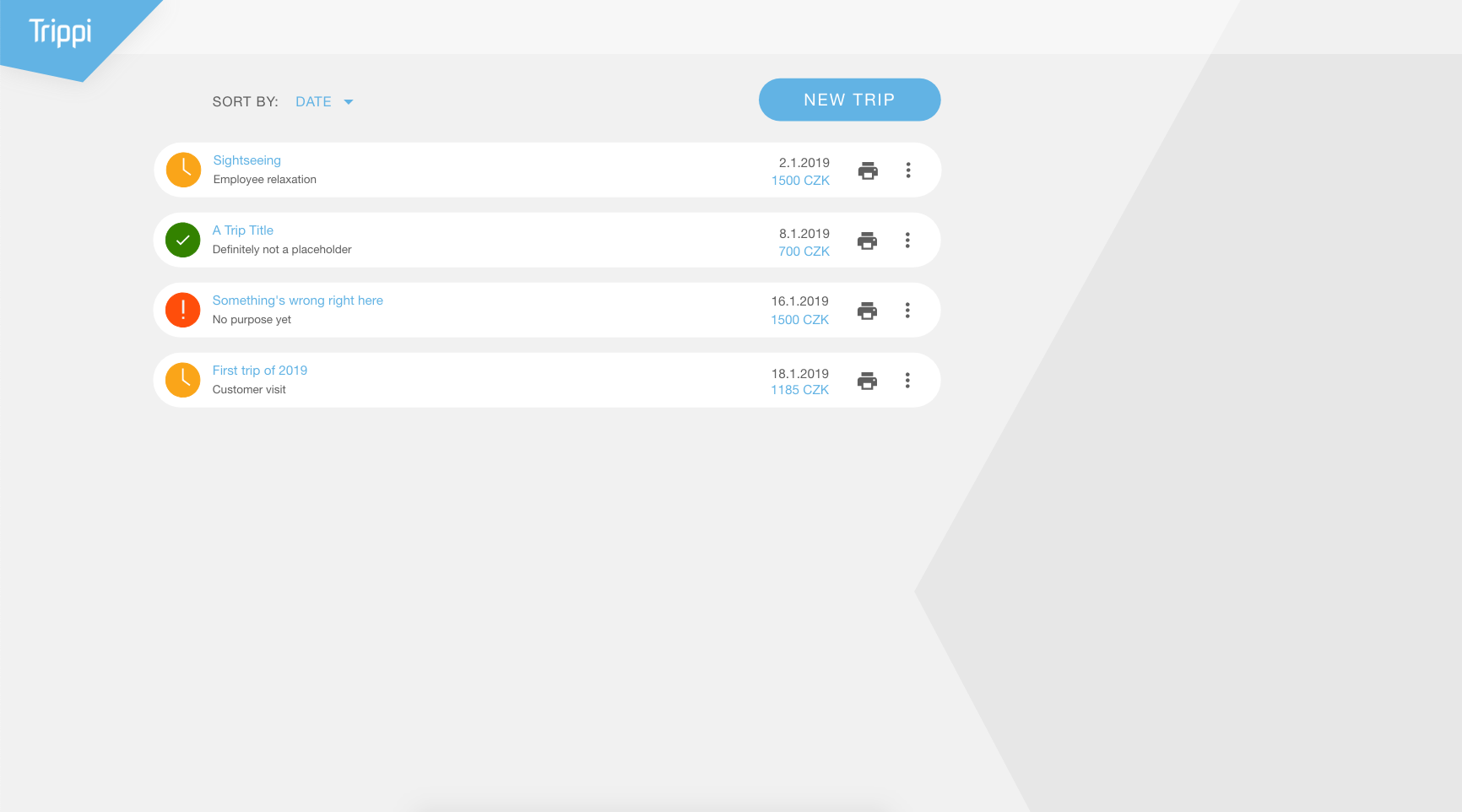
By logging in to the app, the Landing page opens, leading to the first basic choices. Aside from the main one (new trip), there is a library of trips in process and list of trips that are already finished (which can be sorted by date, state, allowance, etc.)
 Each trip has its own link that includes the most vital information, like date, allowance, the trip’s name and its importance. The library consists of multiple types of these links.
 The files are sorted into three colours.
The YELLOW is trip in progress.
The GREEN represents the trips that have been exported at least once already and don’t need any more work.
The RED one stands for trips that need acute attention.
By clicking either icon, you can access each individual trip and fiddle with whatever information needs changing.
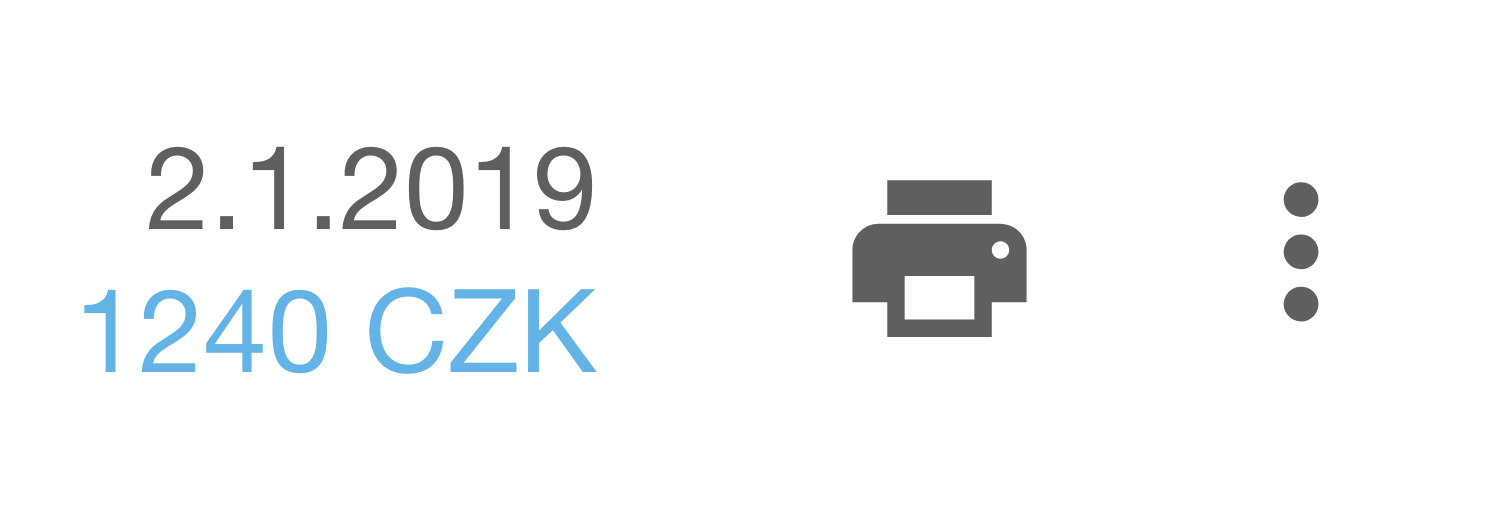 Each link has the print icon that allows instant print and the choice menu – delete or duplicate – alongside date of the trip (first day of the trip) and the allowance.
 By selecting NEW TRIP, you are automatically guided to a new page:
Easier than ever
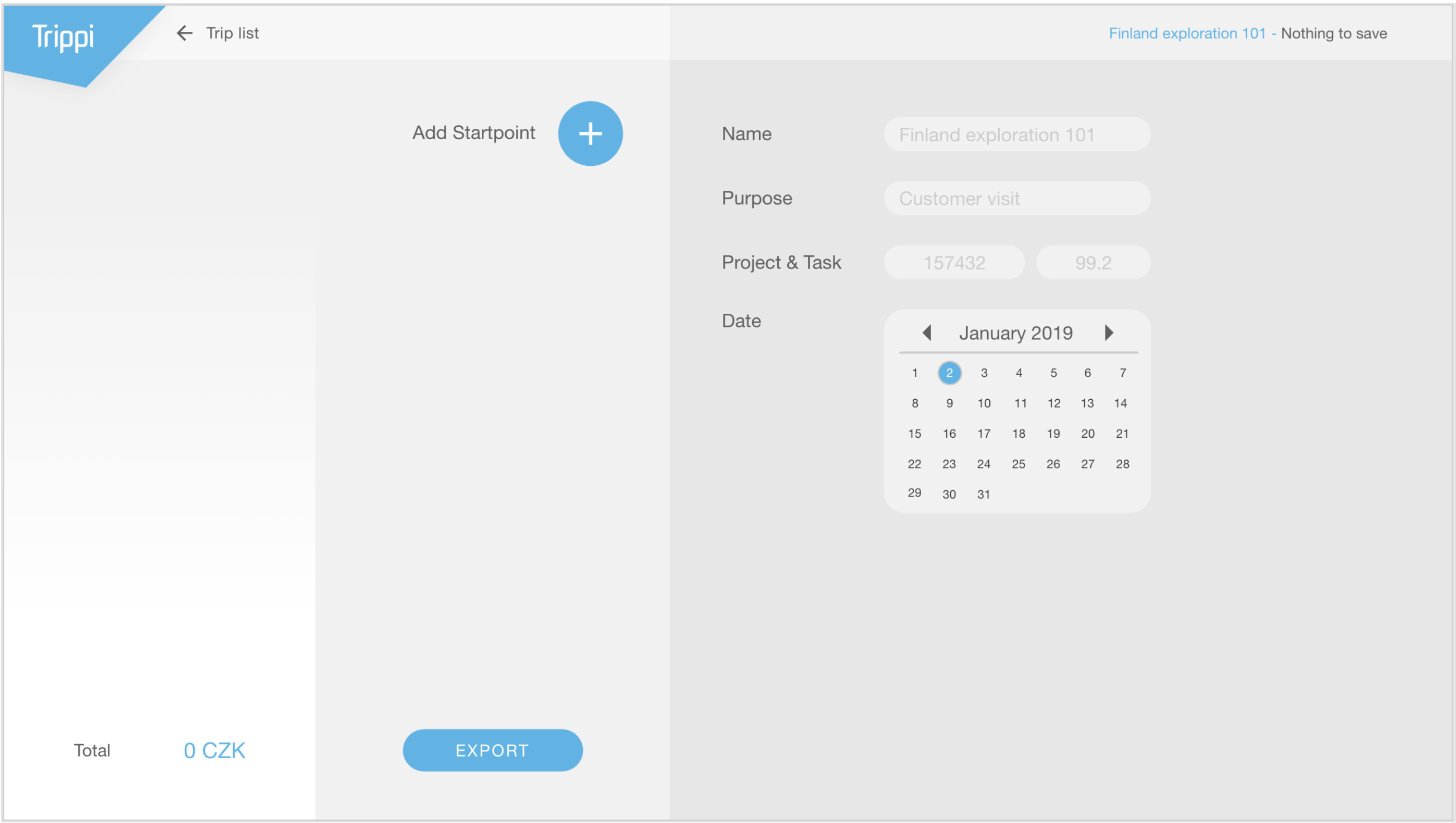
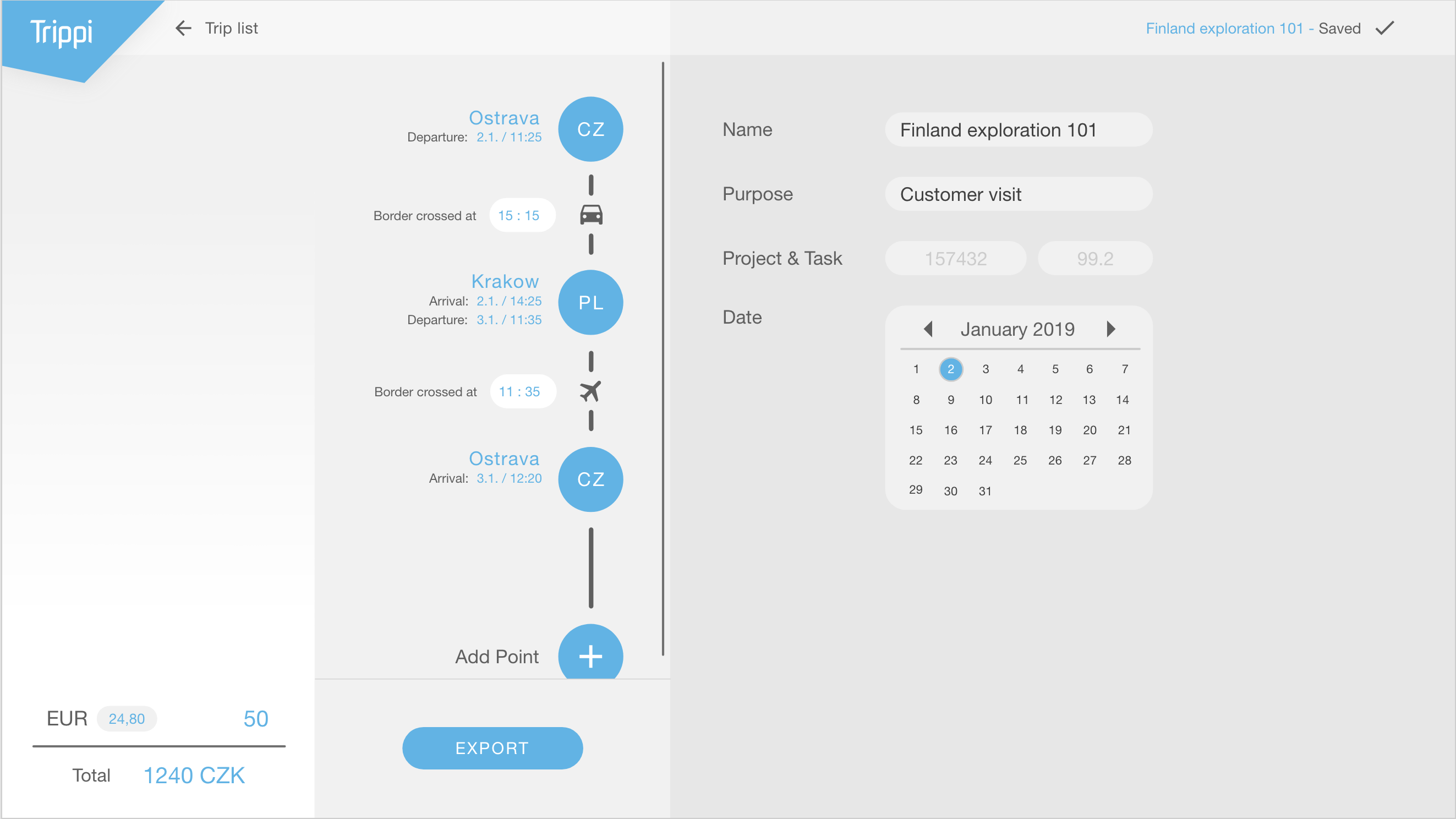
By clicking the NEW TRIP button, a new page will open which will allow us to plan our entire trip. The first forms will appear to fill in basic information; the trip name, purpose a project & task.
Startpoint edit
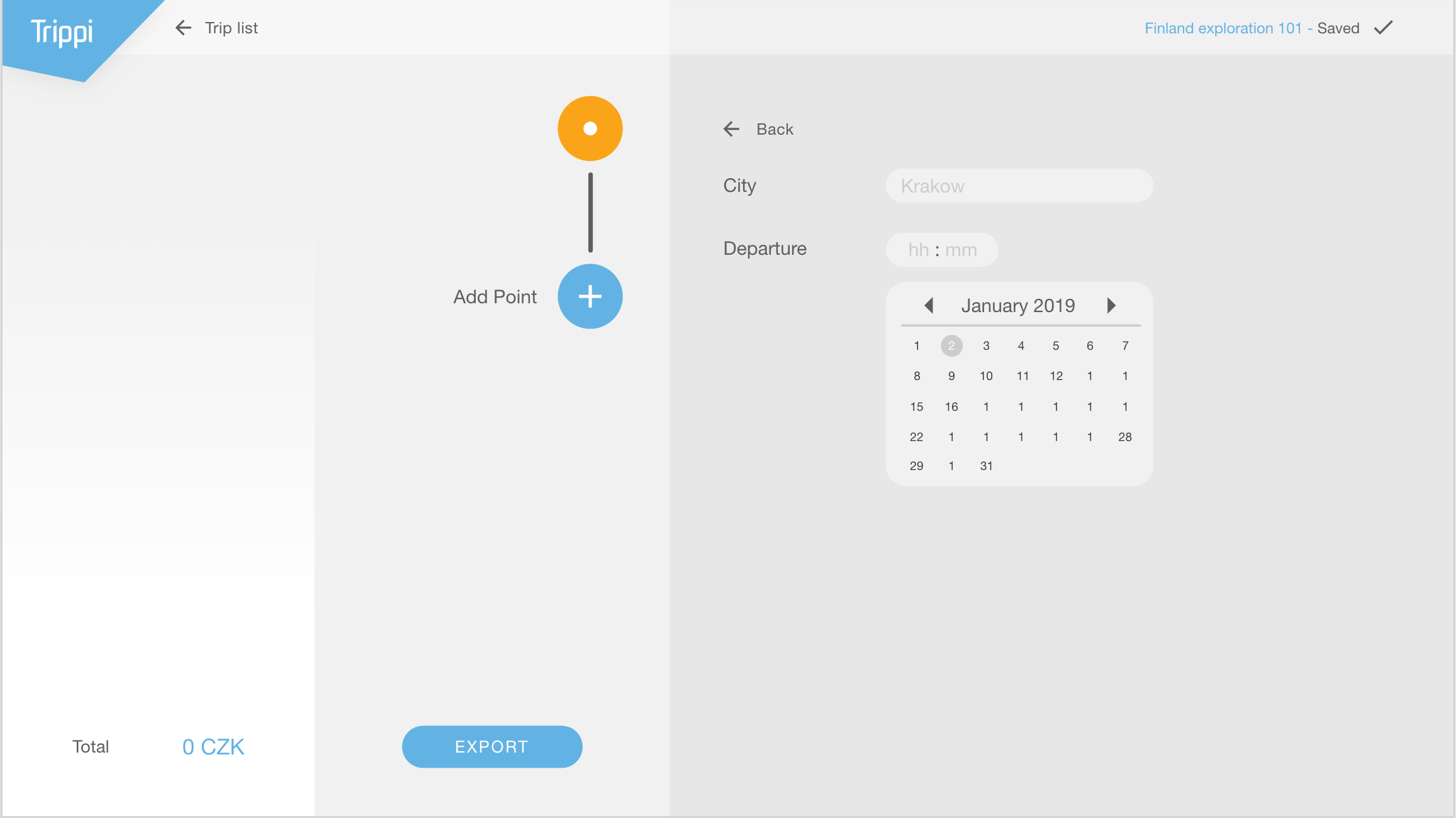
Clicking the ADD STARTPOINT button, a new form will appear – the information about the first day of the rip will be added there. The orange circle represents the point of the trip that is currently being created or changed.
Next step is to fill in the information into given boxes. The first box will ask for the city of departure, likewise the next asks for time thereof. The calendar beneath the boxes allows to easily select day, month, and year of our departure.
 On the left upper corner is the button BACK, which allows us to get back to the basic trip information form.
 If we want to add another point, we can use the button labelled ADD POINT.
Midpoint edit
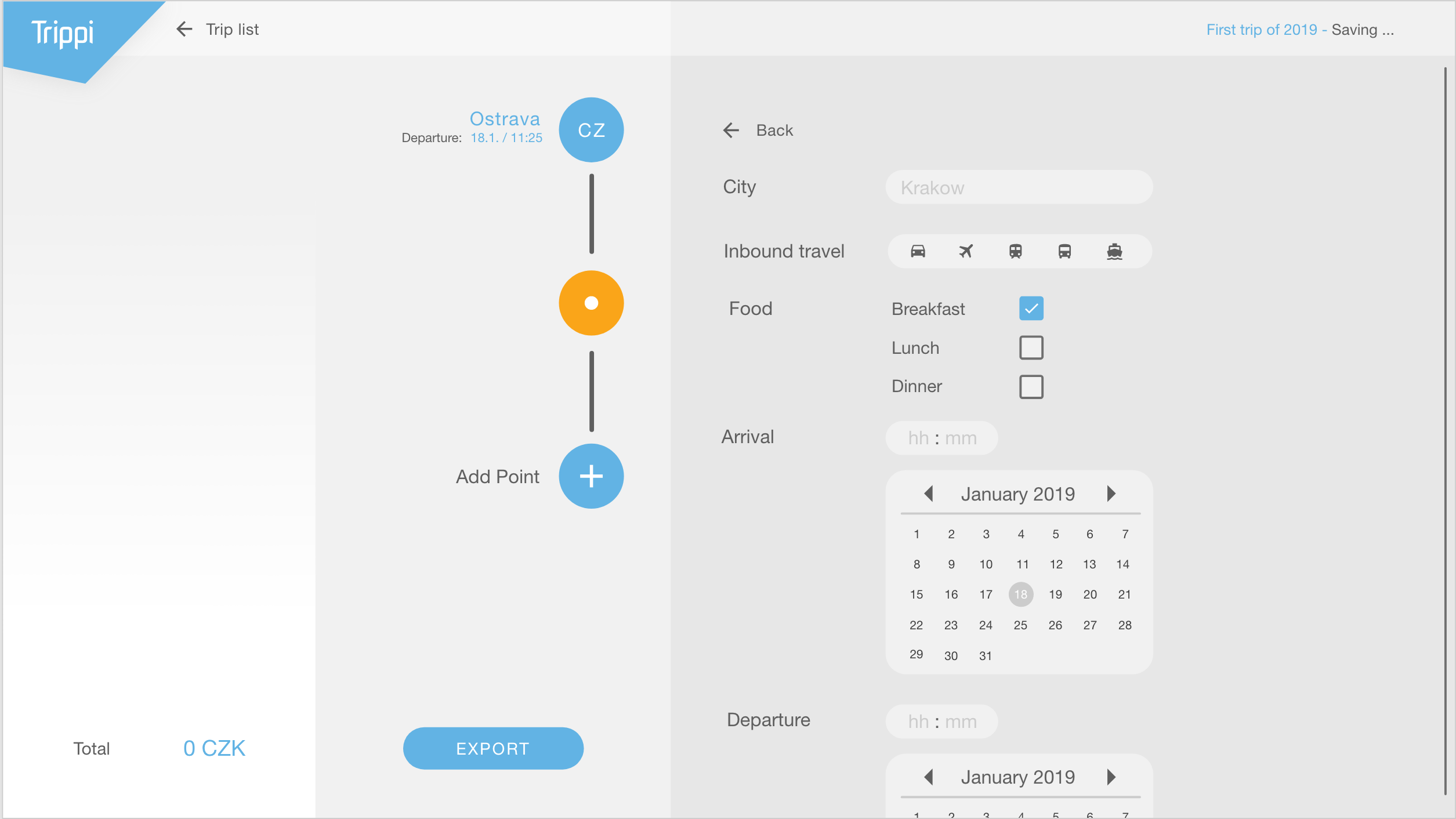
After clicking the ADD POINT button, a new form will appear, now visibly more detailed. At this point we are selecting and describing the travel – namely the stop between the start and our goal. Of course, our trips usually ends in the point of start.
This form is designed to hold information about the stops we make on our way.
The first box will ask for the city you have arrived in and immediately after the method of transport used to get there – car, airplane, train, bus, or a boat.
Next on the list is if we had a meal today – breakfast, lunch, or dinner. Lastly we need to input at what time and day we arrived and the same for the time we departed.
Using the BACK button again we can once more get back to the basic information and potentially create a new stop point of the trip.
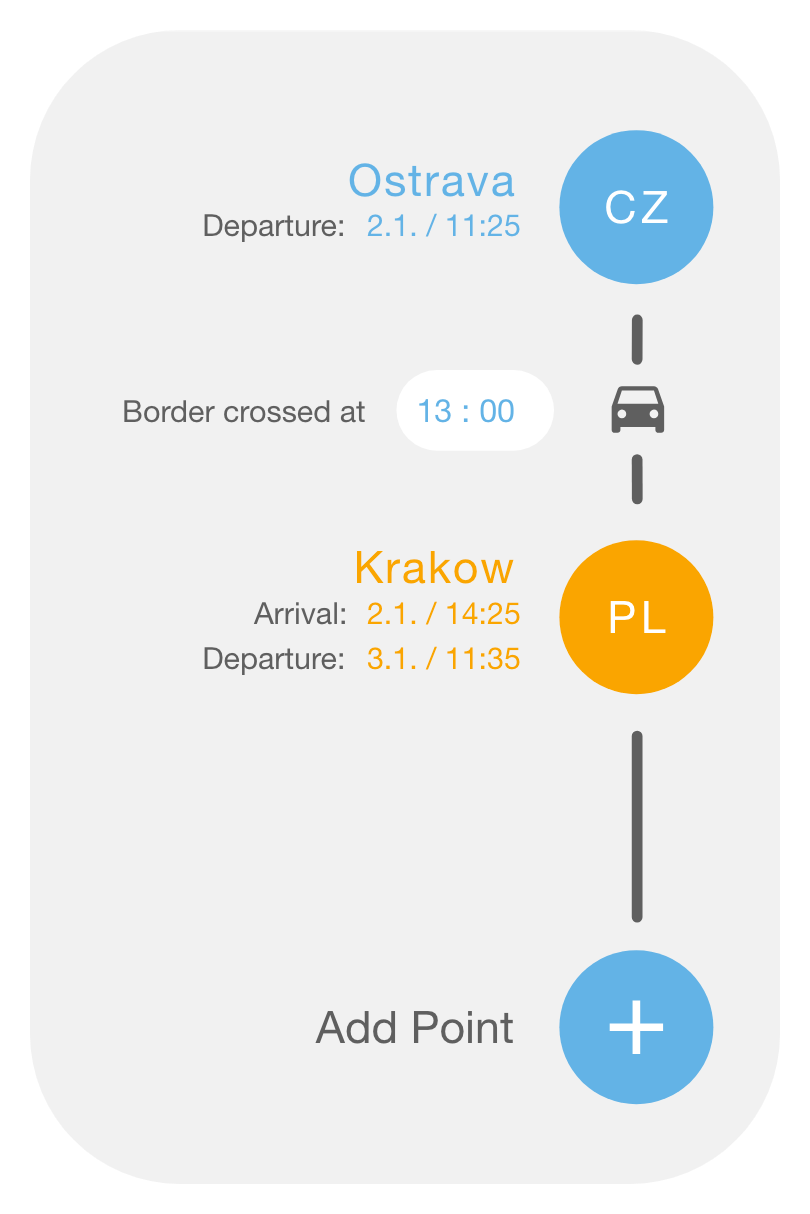 As we fill in more information, the locations etc. will be displayed in the diagram on the side of the forms, simplified as shown on the picture for sake of order and potential control of all information.
The app automatically calculates at what time we crossed the border (which, of course, has the possibility of being changed manually should a mistake occur).
Using the ADD POINT option allows us to add another stop at any time.
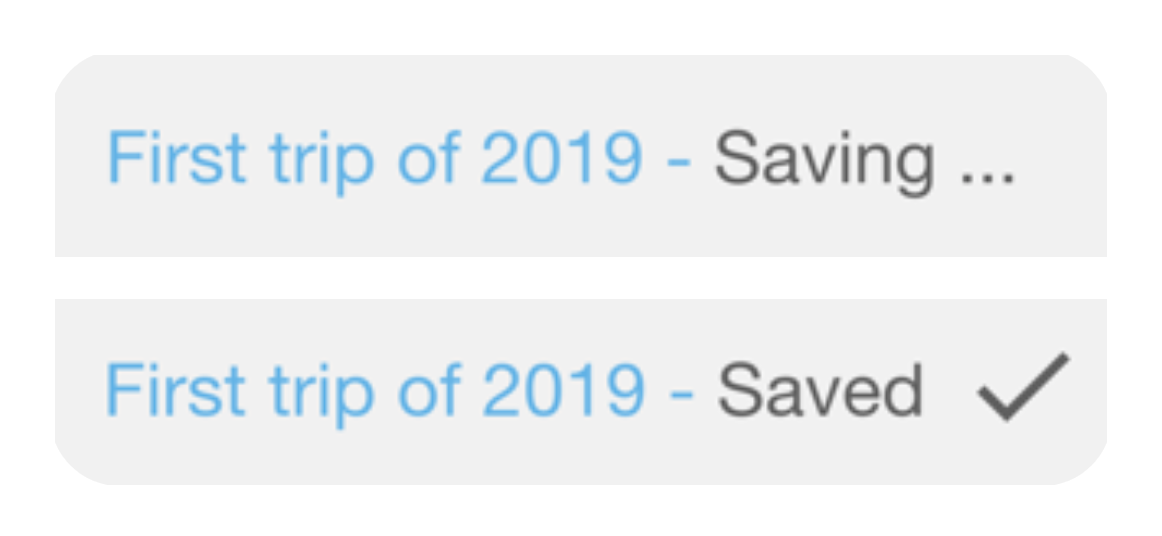 Each change is always automatically saved, as shown on the upper right corner of the screen, showing in what process of saving the file currently is.
 The TRIP LIST button will send us back to the LANDING PAGE, where we can see all the trips, saved or not.
Finished trip
As we finish in-putting info, we return to the first basic information form, showing the finished project.
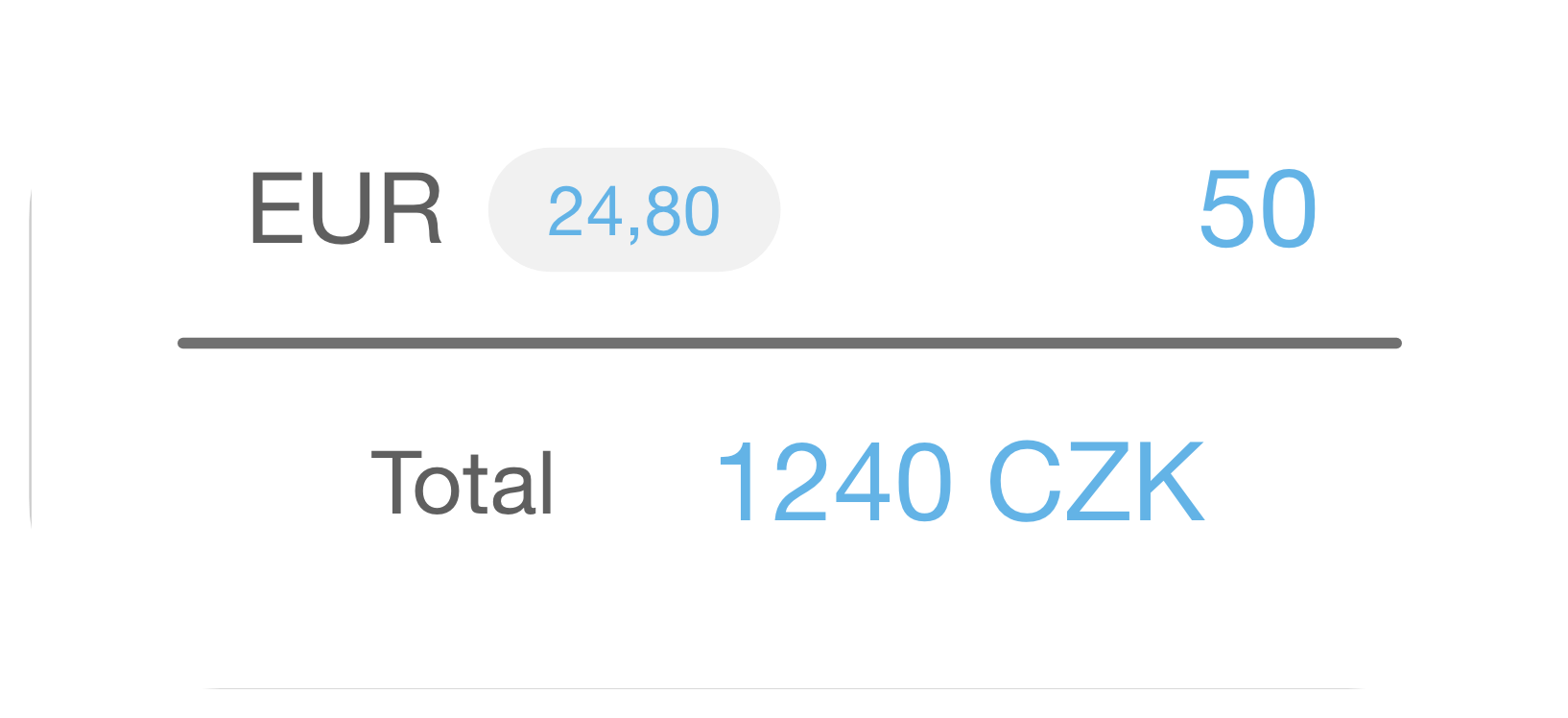 On the lower left corner of the screen is a allowance calculator in adequate currency of the countries you were in at the time, and shows your total allowance.
 Right next to the calculated allowances is an EXPORT button, which will allow Trippi to rewrite all the information into excel format that you can immediately send to your superior or print out.
Using the TRIP LIST button the LANDING PAGE opens. Your finished trip has already been added here.